The General tab holds what identifies a device: its name, its SIM cards, its model and the identifier it reports under. The same form is step 1 of the wizard when you add a device. To open it, in the side menu, select Devices, then select Edit on the device's row.
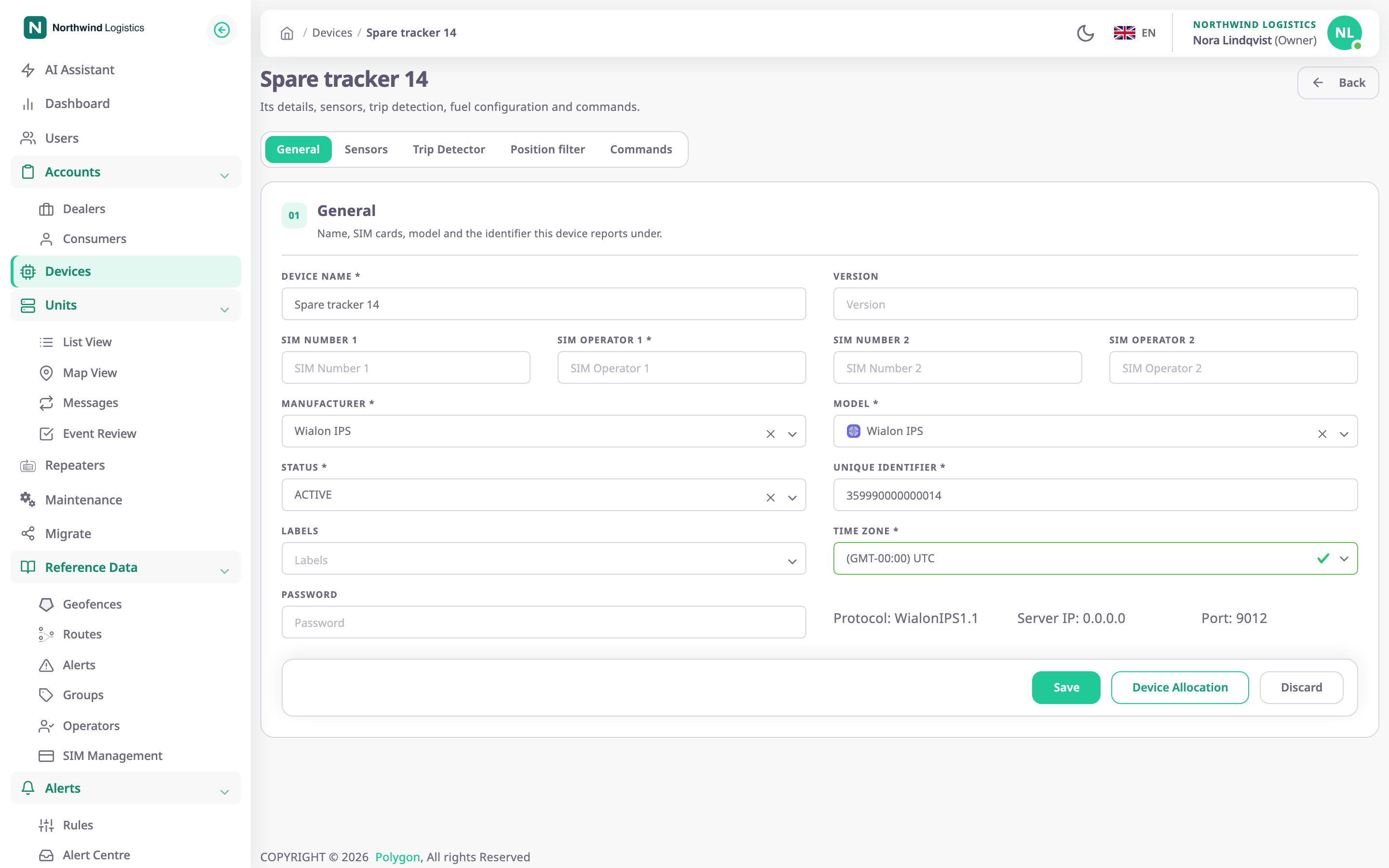
The page title is the device's name. The tabs across the top are General, Sensors, Trip Detector, Position filter, Fuel Config and Commands. Trip Detector shows only if the device has a GPS sensor, and Fuel Config only if it has a fuel sensor. Each tab has its own page:
The address bar keeps the open tab, so a reload or a shared link opens the same tab.
¶ Fields
| Field | Required | What it does | Allowed values / example | Notes |
|---|---|---|---|---|
| Device Name | Yes | Names the device in the devices list, on its units and in the allocation dialogs. | 3 to 50 characters. Example: Spare tracker 14 | Need not be unique. The app removes spaces at the start and end. |
| Version | No | The firmware version, shown next to the model in the list. | Up to 50 characters. Example: 1.1 | Free text. |
| SIM Number 1 | No | The phone number of the SIM card in the device. | 6 to 15 digits, with ( ) + - if you like. Example: 319700000007 | See SIM cards. |
| SIM Operator 1 | No | The mobile operator of that SIM card. | 2 to 20 characters. Example: KPN | Filled in when you pick a SIM card from the list. The label shows a required marker, but you can leave it empty. |
| SIM Number 2 | No | The phone number of a second SIM card, for dual-SIM devices. | As SIM Number 1 | Must differ from SIM Number 1. |
| SIM Operator 2 | No | The mobile operator of the second SIM card. | 2 to 20 characters | — |
| Manufacturer | Yes | Narrows Model to one manufacturer's models. | A manufacturer from the list | Not saved on its own; the model carries it. |
| Model | Yes | The device model. It sets the protocol, the server address and port, and the sensors a new device starts with. | A model of that manufacturer. Example: Wialon IPS | Changing it on a saved device resets its sensors and commands. See Change the model. |
| Status | Yes | The device's condition in your stock. | ACTIVE, INACTIVE, DAMAGED, BLOCKED | ACTIVE by default. Only ACTIVE devices show Allocation in the devices list. |
| Unique Identifier | Yes | The number the device reports under, usually its IMEI. The app matches every incoming message to a device by it. | 2 to 16 characters, no spaces. Example: 359990000000014 | Must be unique among all devices on the server, not only in your account. |
| Labels | No | The groups the device belongs to. | Existing groups, or a new name | Shows only if your role can read groups. |
| Time Zone | Yes | The time zone of the device's own clock. For protocols that send local time, the app reads message times in this zone. | A time zone from the list. Example: (GMT+00:00) UTC | A new device starts with your profile's time zone. Wialon IPS devices send UTC; set UTC or every message time shifts. |
| Password | No | The password the device sends when it connects, for protocols that use one. | Up to 20 characters | Shows in plain text. Leave it empty if the device has none. |
| Create unit for the device | No | Also creates a unit with the device's name and puts the device on it. | On or off | Only when you add a device, on the first step. Off by default. |
¶ SIM cards
When you select SIM Number 1 or SIM Number 2, a list of the SIM cards linked to your account opens below the field. Type to narrow it. Pick a card to fill in the number and the operator.
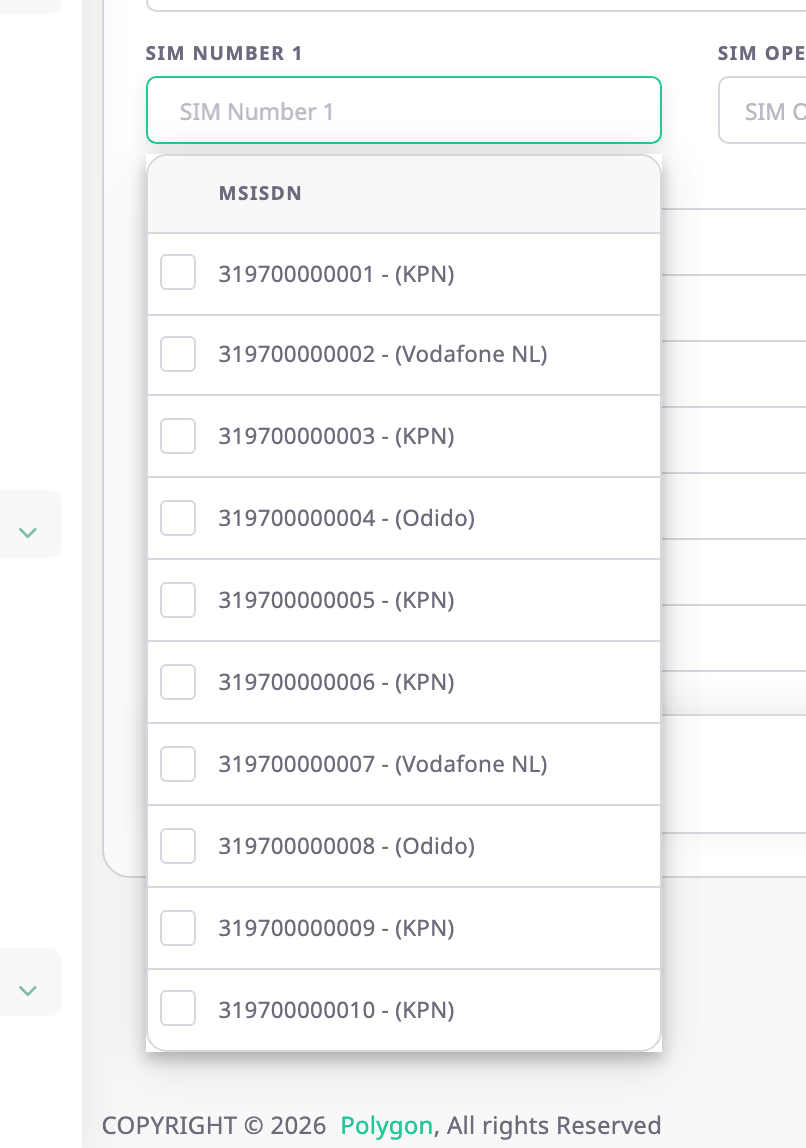
- A number that is not in the list shows with "(Add New)". When you save, the app adds it to your SIM cards.
- The list also shows cards that another device already uses. Saving one of those fails with "SIM number already exist".
- The app removes leading zeros from the number before it saves.
- Saving the same number in both fields fails with "Both SIM numbers are the same, please enter different SIM numbers".
For the SIM cards themselves, see SIM cards.
¶ Protocol, server IP and port
Once you choose a model, a line under the form shows Protocol, Server IP and Port. These are the settings the installer enters in the device so that it sends its messages to the app. The values come from the model; you cannot change them here.
¶ Change the model
Changing Model on a saved device replaces most of its set-up. When you select Save, the app asks "Do you really want to change device model ?" and warns that the device loses its sensors and commands.
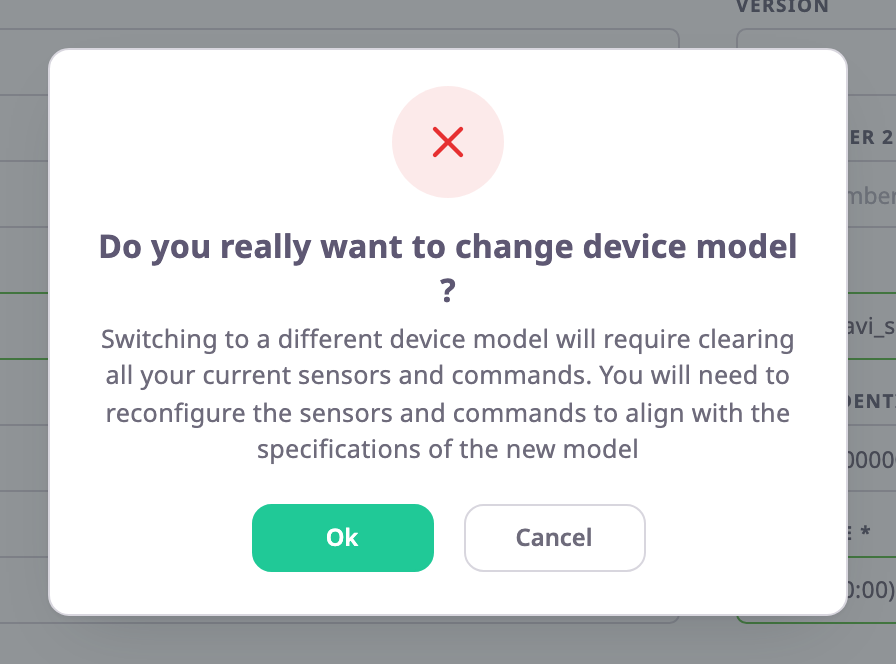
- Ok saves the device with the new model. The device gets the new model's default sensors, loses its commands, and its trip detector and fuel settings go back to their defaults.
- Cancel closes the question and puts back the last saved values of every field on the form, not only the model.
¶ Buttons and actions
| Action | What happens |
|---|---|
| Save | Saves the General tab. The app shows "Device updated successfully" and stays on the device. |
| Device Allocation | Opens the Device Allocation dialog. See Device allocation dialogs. |
| Discard | Puts back the last saved values. The app saves nothing. |
| Back | Returns to the devices list without saving. |
Save on General saves only this tab. The other tabs save their own settings.
¶ Edit and view modes
View in the devices list opens the same page read-only. The fields are unavailable and Save and Discard are gone. Device Allocation still opens the dialog, to show the allocation history.
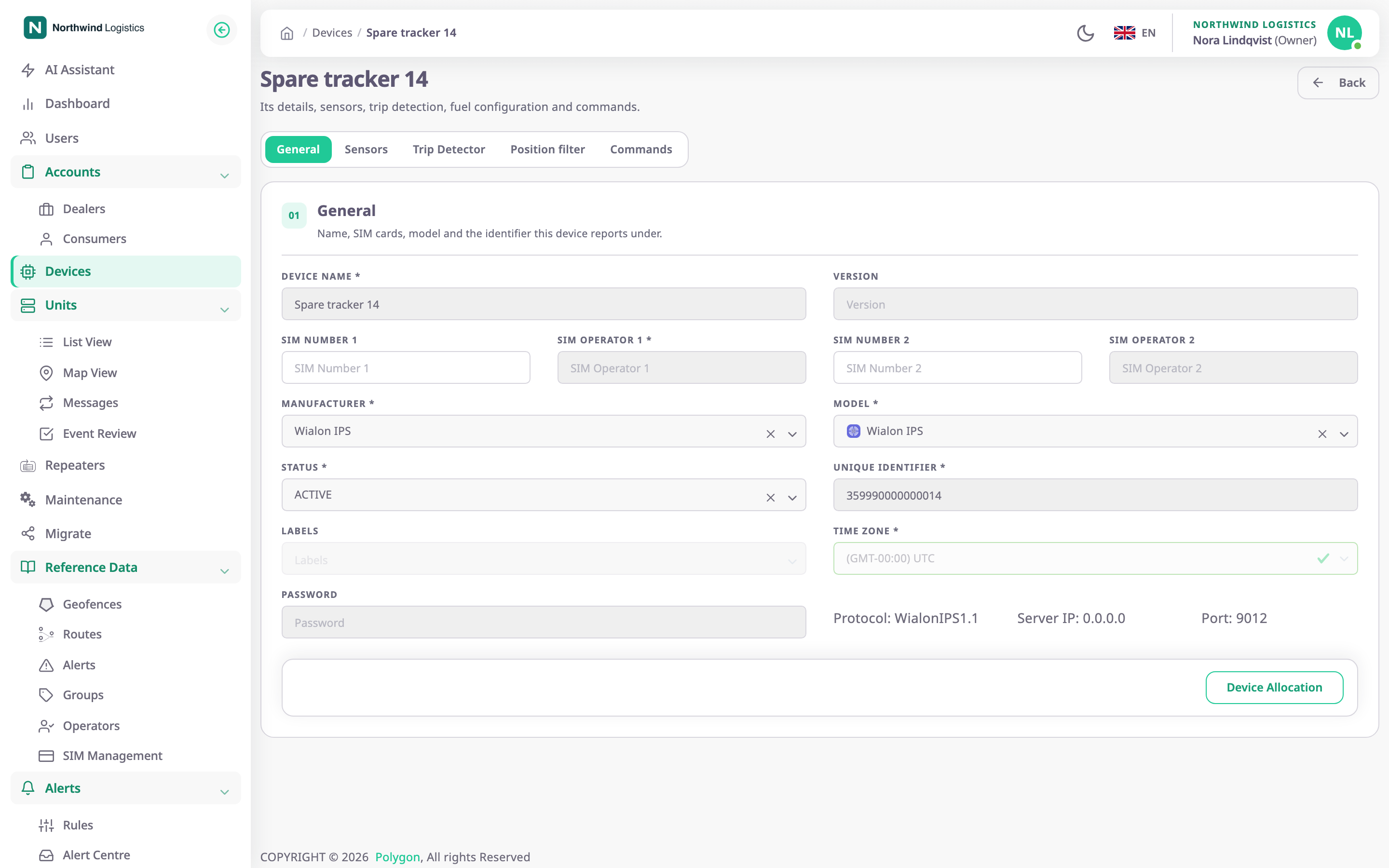
A device can also open without Save from Edit. That happens when your account may see the device but not change it. See Device ownership and allocation.
¶ Permissions
- To open the page you need Devices > Read. To change the General tab you need Devices > Edit.
- Device Allocation needs Devices > Edit.
- The SIM card list needs SIMS > Read.
- Labels needs Labels > Read.
- The built-in Owner role of a dealer account has all of these.