Devices or units? This page is about devices, the tracking hardware installed in a vehicle or on an asset. For the vehicles and assets on the map, see Units. For the difference, see Devices and units.
Import devices when a delivery of trackers arrives: fill one row per device in the template, upload it, and the app registers them all. Every device in one file has the same manufacturer and model.
¶ Before you start
- You need Devices > Add and Import/Export > Import. The import itself also needs Units > Add, even if you do not create units. The built-in Owner role of a dealer account has all three.
- One file holds at most 1,000 devices and 5 MB.
- To copy settings to the new devices, you need a device of the same model that is already set up. An example is Reference tracker 25 (all settings).
¶ Open the import
- In the side menu, select Devices.
The Devices list opens. - Select the arrow next to Add Device.
- Select Import Devices.
The Import Devices wizard opens on Model & Options.
¶ Choose the model and options
-
In Manufacturer, choose the manufacturer.
-
In Model, choose the model, for example Wialon IPS.
-
Optional: turn on Clone configuration from existing device, marked 1.
Source device and the parts to copy appear.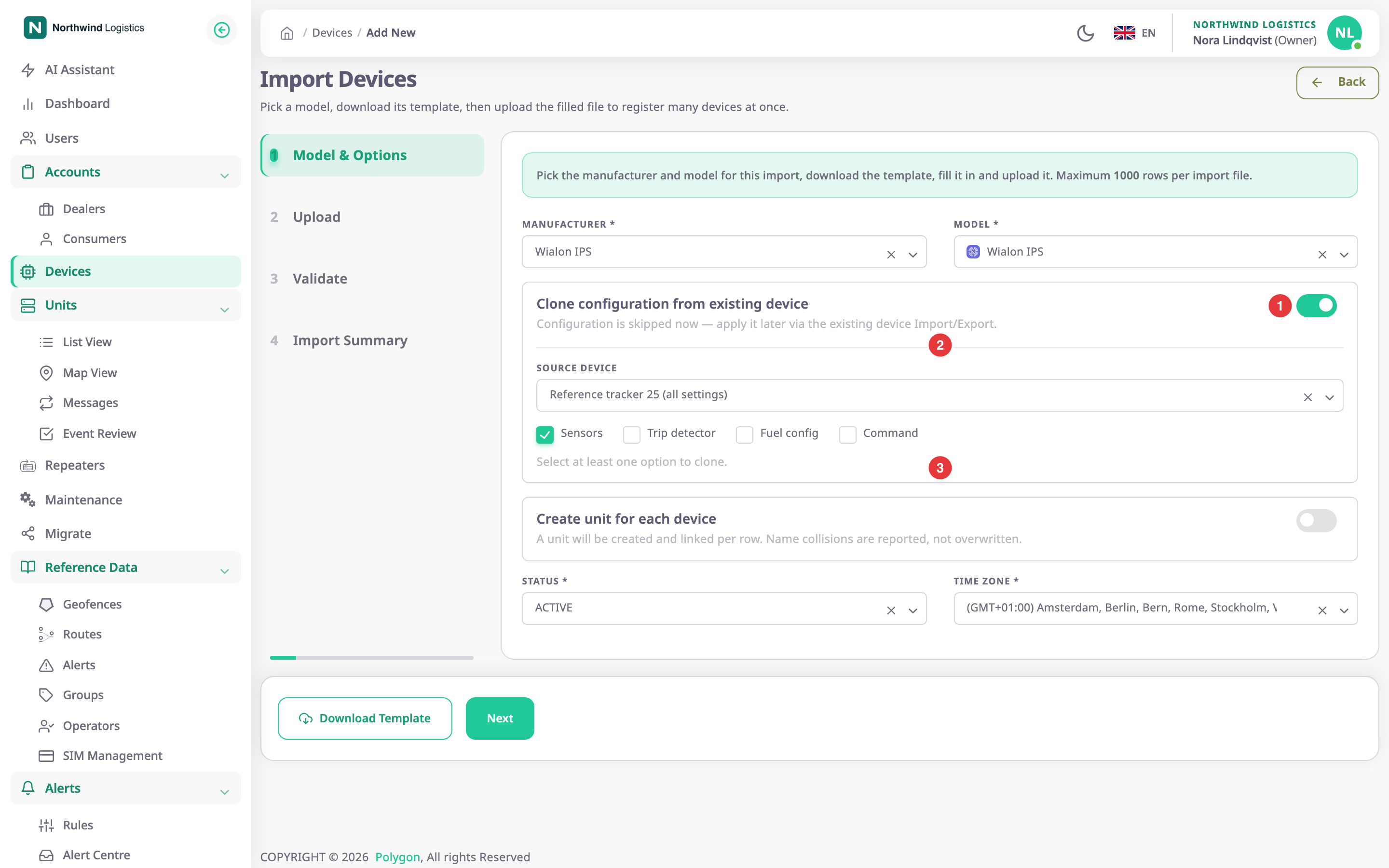
-
If cloning is on, in Source device, marked 2, choose the device to copy from.
-
If cloning is on, tick at least one part, marked 3.
-
Optional: turn on Create unit for each device. Each device then gets a unit with the same name.
-
In Status, choose the status for every device in the file.
-
In Time Zone, choose the time zone for every device in the file.
-
Select Download Template.
Your browser saves the CSV template for the model. -
Select Next.
The Upload step opens.
The copied parts are Sensors, Trip detector, Fuel config, Command and Position filter. The source list offers only devices of the chosen model.
¶ Fill in the template
Open the template in a spreadsheet program. Fill one row per device, keep the header row, and save it as CSV.
| Column | Required |
|---|---|
| Device Name | Yes |
| Version | No |
| SIM Number 1, SIM Operator 1 | No |
| SIM Number 2, SIM Operator 2 | No |
| Unique Identifier | Yes |
| Labels | No; separate several groups with a vertical bar, such as Imported|Reefer fleet |
| Password | No |
The rules for each column are in the Device CSV columns reference. The same limits apply as in Device general settings.
¶ Upload and validate
-
Drop the file on the dashed area, marked 1, or select Choose File there.
The app reads the file and shows how many rows are ready.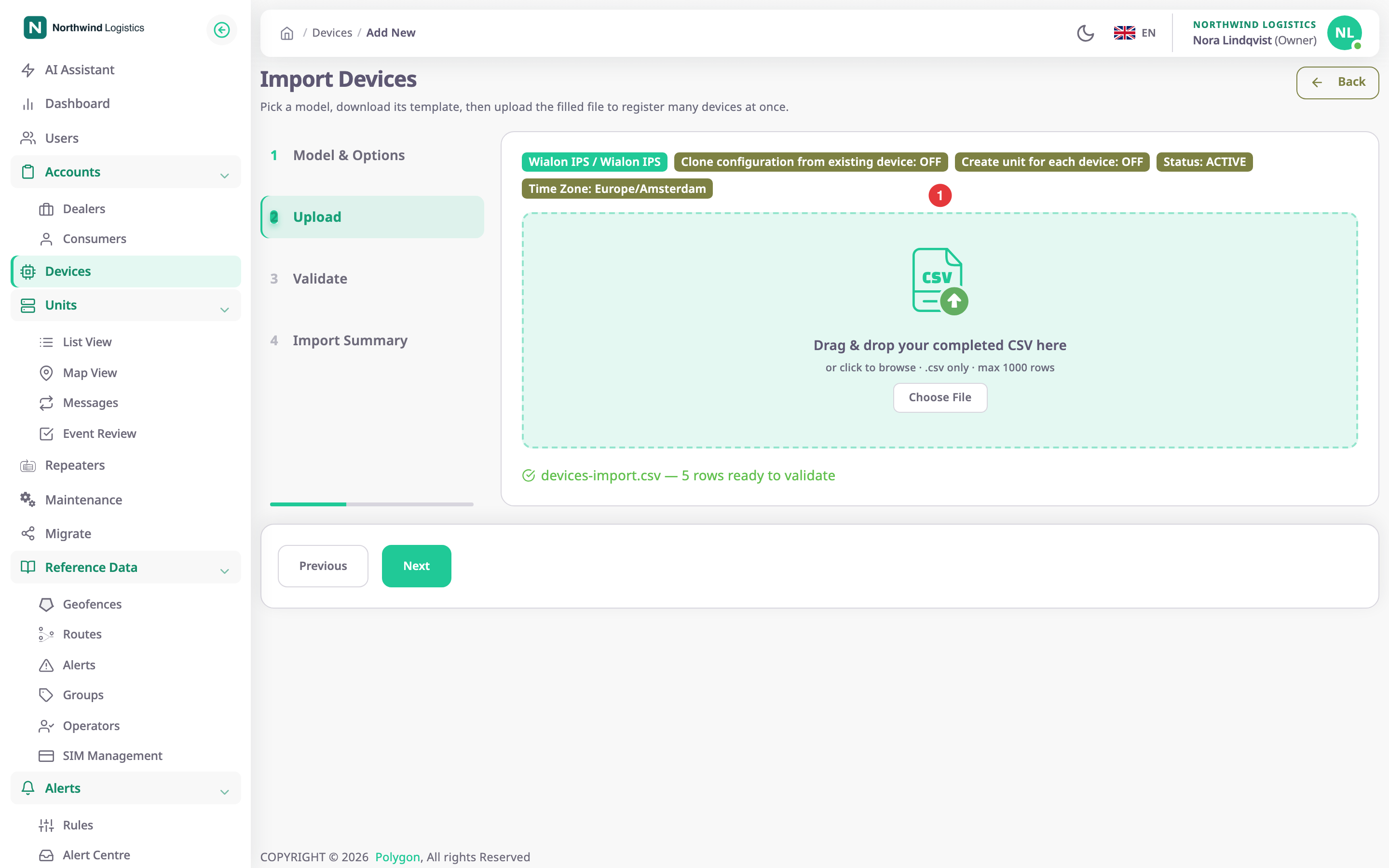
-
Select Next.
The app checks every row against the server and shows the result.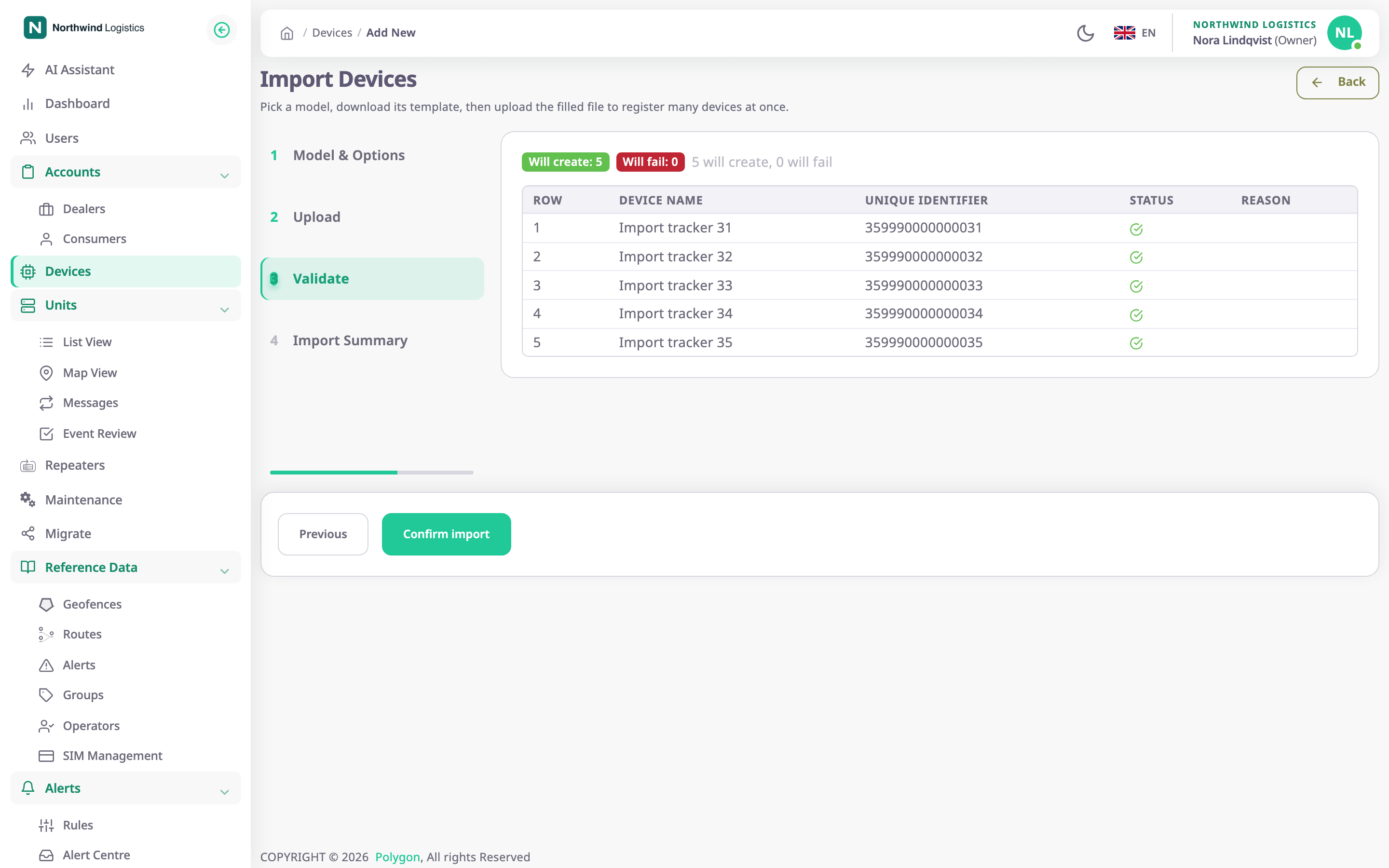
-
Read the table. A red cross marks a row the app cannot import; Reason says why.
The app refuses a file at once if it is not CSV or is empty. It also refuses a file over 5 MB or 1,000 rows, or one without a required column. It ignores columns it does not know, with a warning. A file saved by a Russian-language spreadsheet program in the Windows Cyrillic encoding also reads correctly.
To fix rows, correct the file, select Previous and upload it again.
¶ Import and read the summary
- Select Confirm import.
If the check found bad rows, the button reads "Import {n} valid rows (skip the rest)", with the number of good rows. It imports only those. The app shows "Importing devices… Please wait". You can leave the page; the import goes on in the background. - When the Import Summary step opens, check Devices imported and Devices failed.
- Optional: select Download CSV to get the result file, with one line per row and its outcome.
- Select Done.
The Devices list opens.
The summary says "Import Successful" even when some rows failed. Check Devices failed and the result file. The app keeps the result file for a limited time, so download it soon.
¶ What happens next
- The new devices are in the devices list, owned by and allocated to your account.
- They have the model's default sensors, and the status and time zone you chose.
- With cloning on, the app copies the chosen parts from the source device after it creates the devices.
- With Create unit for each device on, each device has a unit named after it. If another unit already has that name, the app creates the device without a unit and says so in the result file.
- The page may show "The import may still be running. Refresh the device list in a few minutes to see the result." In that case, wait a few minutes and reload the devices list.