Devices or units? This page is about devices, the tracking hardware installed in a vehicle or on an asset. For the vehicles and assets on the map, see Units. For the difference, see Devices and units.
Register a device before you install it, so the app knows the device when its first message arrives. The Add Device wizard takes you from the device's identity to its sensors and settings, and ends by waiting for that first message.
¶ Before you start
- You need Devices > Add. The built-in Owner role of a dealer account has it. Customer accounts cannot add devices.
- Have the device's unique identifier at hand, usually the IMEI on its label, and know its manufacturer and model.
- Optional: have the phone number of its SIM card. You can add it later.
- To start from a device you already set up, see Clone a device.
¶ Enter the general details
-
In the side menu, select Devices.
The Devices list opens. -
Select Add Device.
The Add Device wizard opens on General. -
In Device Name, enter a name, for example Workshop tracker 26.
-
Optional: in SIM Number 1, enter the SIM card's number, or pick it from the list that opens.
-
In Manufacturer, choose the device's manufacturer.
-
In Model, choose the model, marked 1.
A line with Protocol, Server IP and Port appears, marked 2. The installer sets these in the device.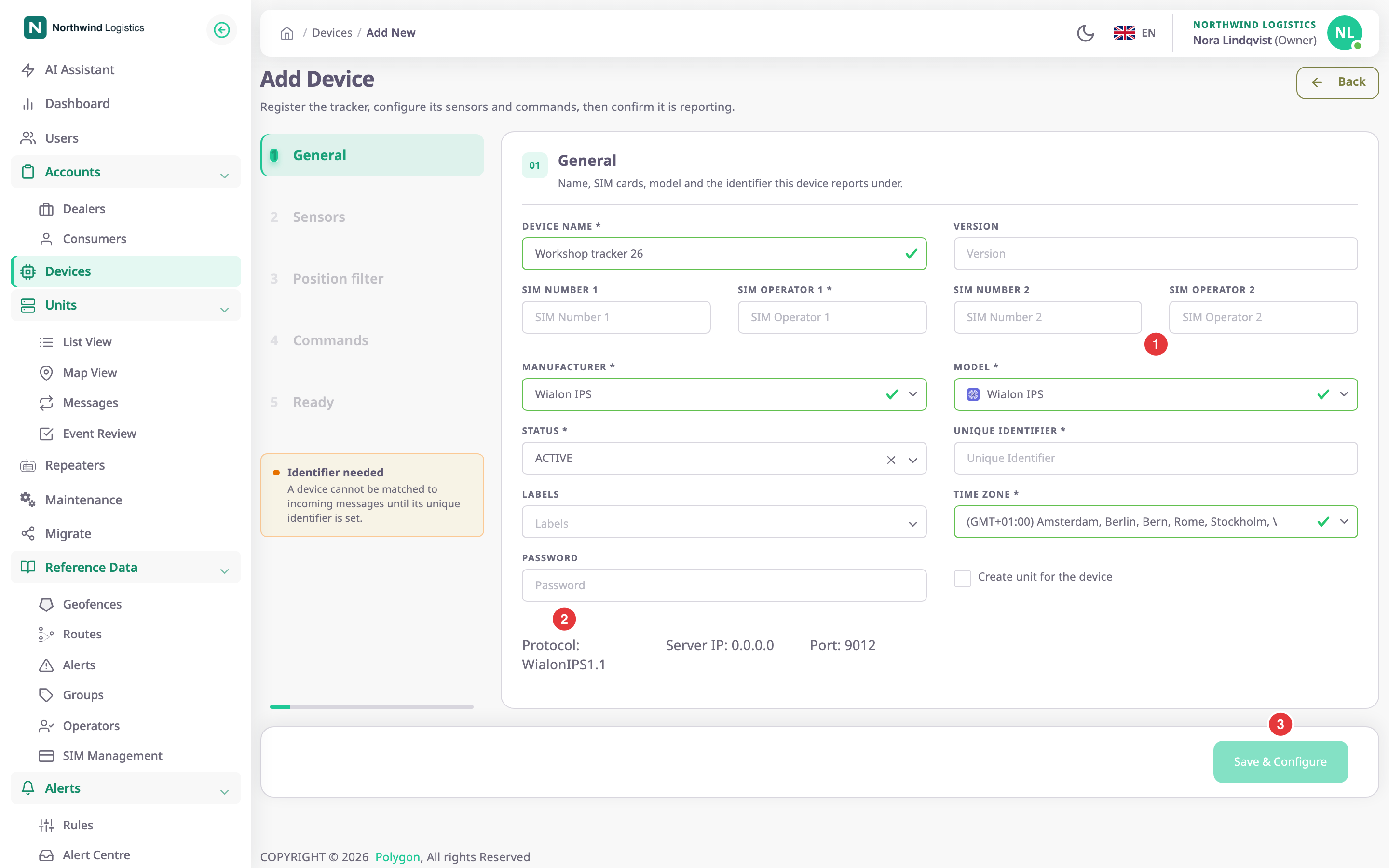
-
In Unique Identifier, enter the IMEI, for example 359990000000026.
The "Identifier needed" note beside the form goes away.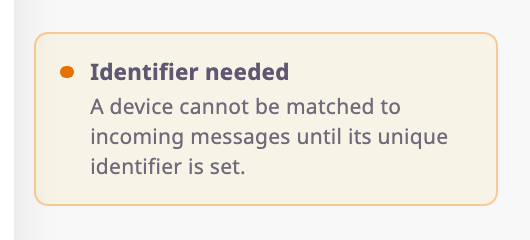
-
Check Time Zone. For a Wialon IPS device, choose (GMT+00:00) UTC.
-
Optional: turn on Create unit for the device to get a unit with the same name at once.
-
Select Save & Configure, marked 3.
The app shows "Device created successfully" and moves to Sensors.
Save & Configure stays unavailable until you fill Device Name, Model, Status, Unique Identifier and Time Zone. If another device on the server already uses the identifier, the app shows "Device already exists." Device general settings describes every field.
From this point the device exists. It is in the devices list, owned by and allocated to your account.
¶ Review sensors and settings
The rail at the top shows the remaining steps. The device already has the default sensors of its model, and default trip and fuel settings if the model has a GPS or fuel sensor.
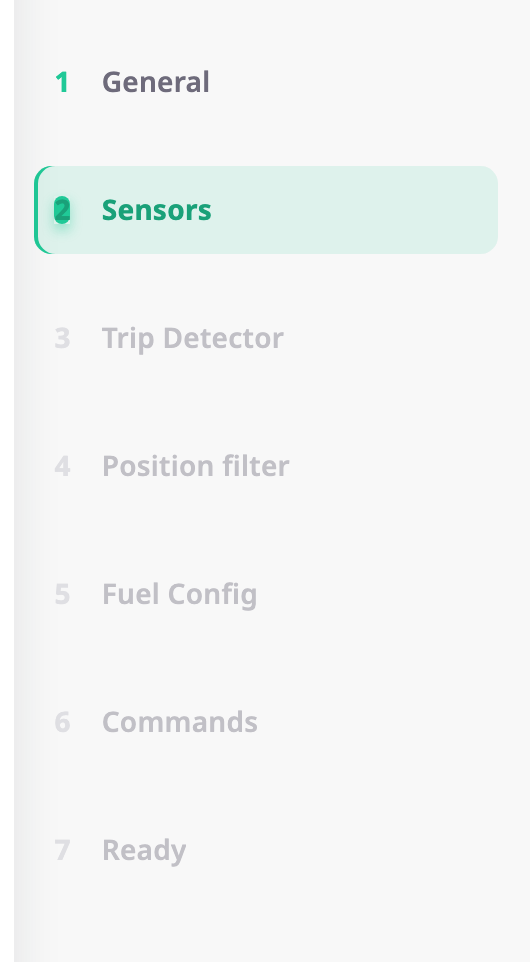
- On Sensors, check the list of sensors. Add or change sensors as the installation needs.
See Sensors tab. - Select Next.
- On each of the following steps, check the settings and select Save & Next.
The app saves that step and opens the next one.
| Step | Shows when |
|---|---|
| Trip Detector | The device has a GPS sensor |
| Position filter | Always |
| Fuel Config | The device has a fuel sensor |
| Commands | Always |
| Ready | Always |
Each of these steps has its own reference page.
Previous goes back one step. You can change every one of these settings later on the device's tabs.
¶ Wait for the first message
Ready shows the protocol, server IP and port again, with "Waiting for device to send message to our server".
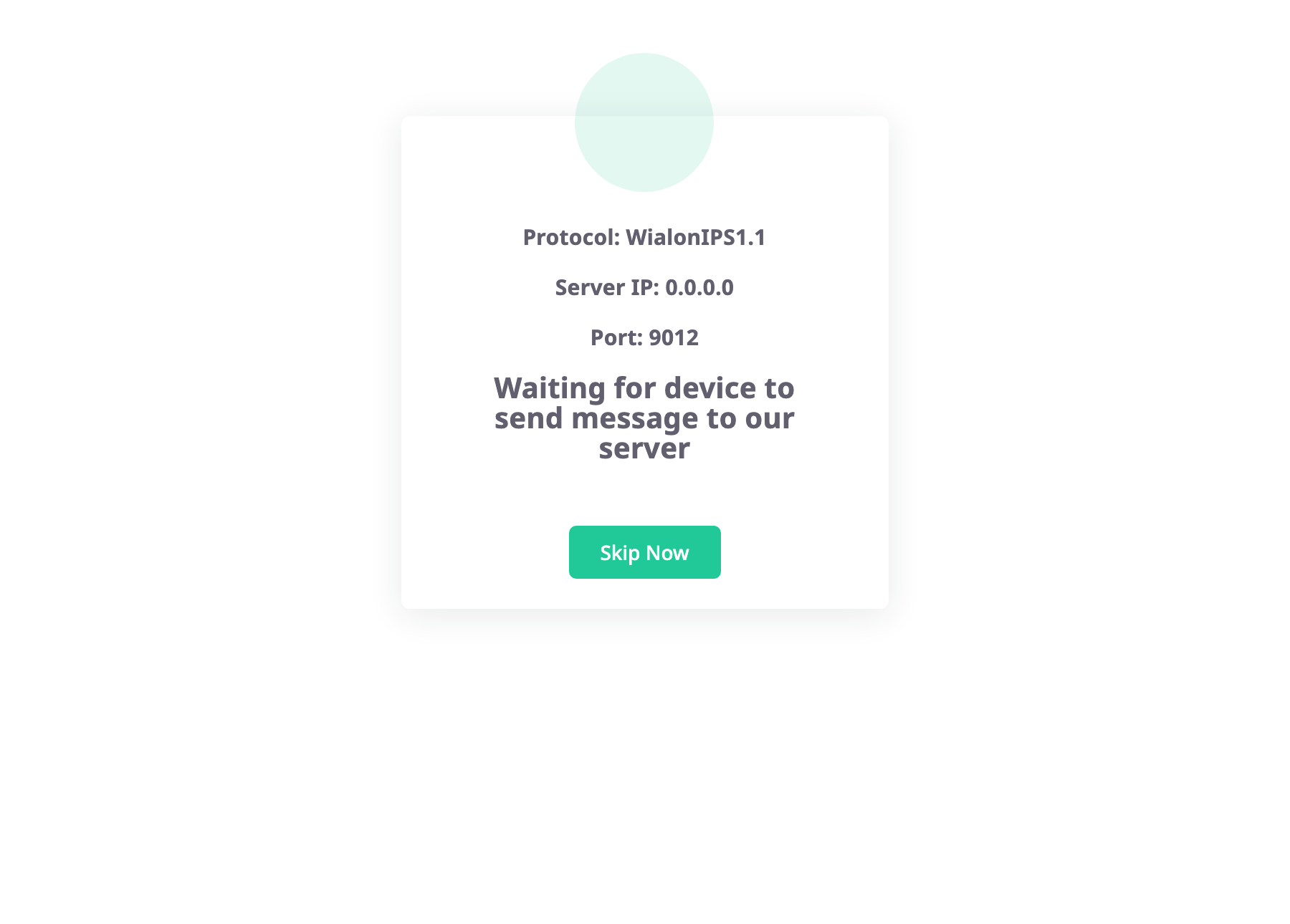
- Have the installer power the device with the server IP and port set in it.
- Wait on Ready.
When the first message arrives, the card changes to "Device Connected Successfully". - Select Proceed to create unit to put the device on a new unit, or Go To All Devices to finish.
If the device is not installed yet, select Skip Now. The devices list opens and the device waits there.
¶ Resume an unfinished device
You do not need to finish the wizard in one go. After Save & Configure, open the device from the devices list with Edit. Each wizard step is a tab there, and you can complete them in any order. See Edit a device.
If you reload the page during the wizard, it opens again on the same step. If you select Back before Save & Configure, the app drops what you entered and creates nothing.
¶ What happens next
- The device appears in the devices list with the status you set, allocated to your account.
- With Create unit for the device on, the unit is in the units list with the device on it. If the app cannot create the unit, the device stays and the app shows an error.
- To give the device to a sub-dealer, see Allocate a device to another account.
- To put it on an existing unit, see Add or remove a unit's devices.
If the device never connects, check the identifier, the server IP and port in the device, and its SIM card. See Unit shows offline.