Devices or units? This page is about units, the vehicles and assets on the map. To register the tracking hardware itself, see Add a device. For the difference, see Devices and units.
Add a unit for each vehicle or asset you want to see on the map and in reports. You name it, place it, choose the account that uses it and attach its devices.
¶ Before you start
- You need Units with Add. The Owner role has it.
- The device must already exist in your account. Dealers add devices on the devices screens; a customer account gets devices from its dealer.
- If the unit is for a customer, the customer's account must exist below yours. See Create a consumer account.
¶ Enter the unit details
-
In the side menu, select Units > List View.
-
Select Add Unit.
The Unit Creation wizard opens at step 1.
-
In Unit Name, enter the unit's name, for example TR-24-ND Demo Van 24.
-
Optional: in Status, choose another status. New units are ACTIVE.
-
Select Unit Location.
A map opens. -
On the map, select the marker tool.
-
Select the point where the unit is kept.
-
Select Save.
The coordinates appear in Unit Location.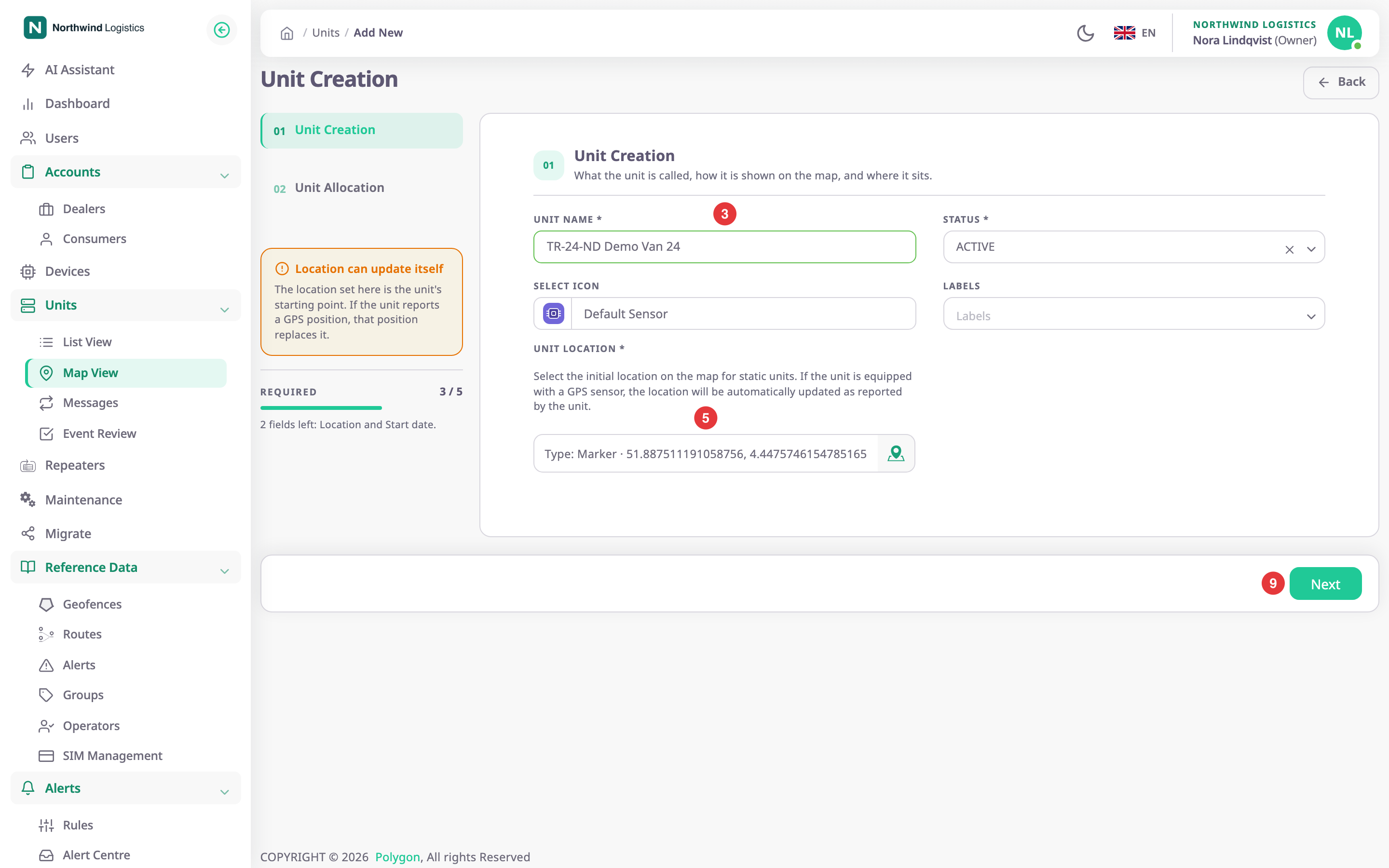
-
Select Next.
Step 2, Unit Allocation, opens.
Optional: choose an icon in Select Icon and groups in Labels before step 9.
¶ Allocate the unit and add devices
-
In Unit Allocate To, choose the account that uses the unit.
The field starts with your own account. -
Optional: in Unit Operator, choose the operator who drives it.
-
Optional: in End Date, choose when the allocation ends. Start Date is now unless you change it.
-
Select the card "Click here to add device".
The Device Allocation dialog opens. -
In Device List, choose the device.
-
Select Add.
A card for the device appears.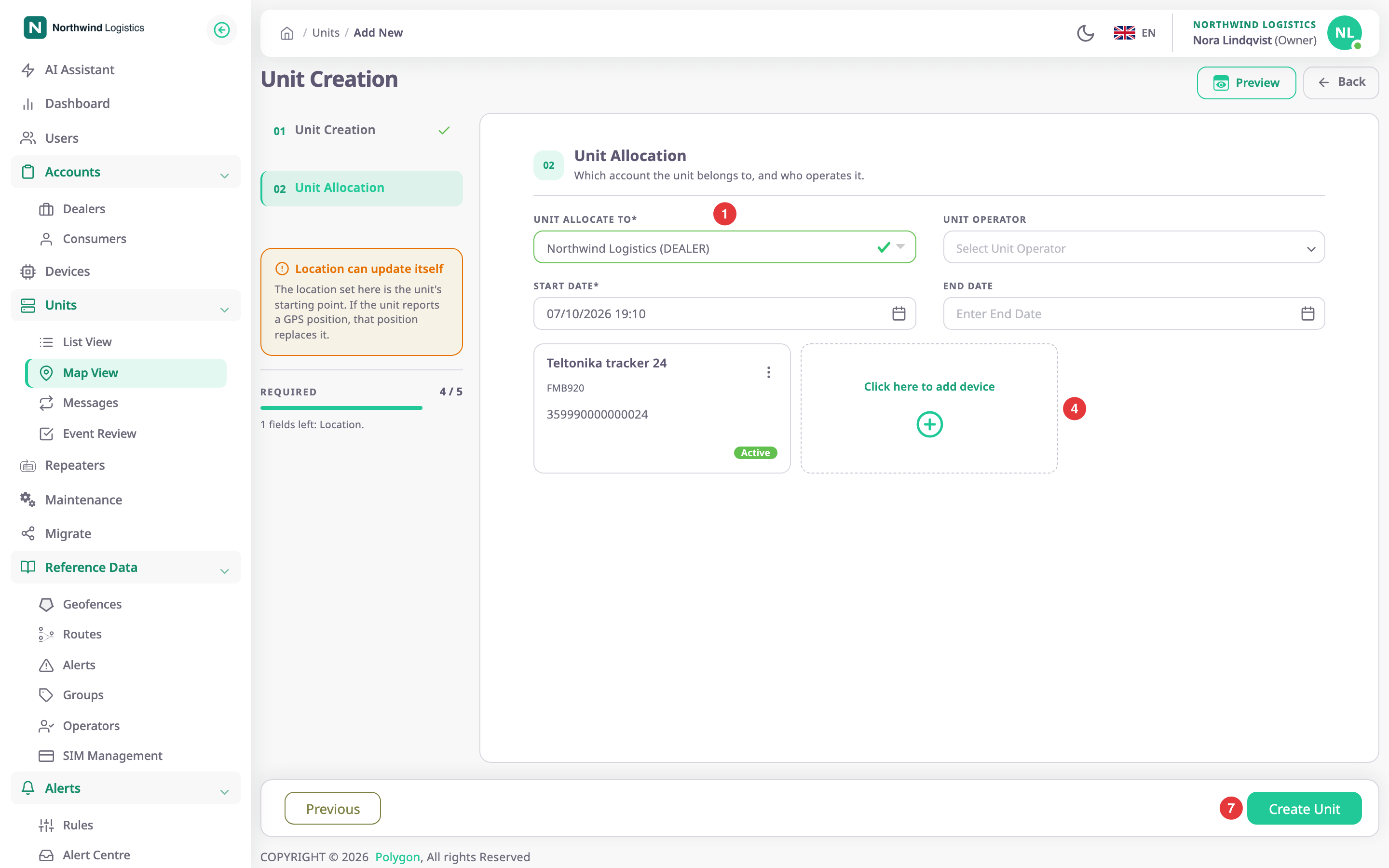
-
Select Create Unit.
The units list opens with the message "Unit created successfully".
If a question asks whether to reallocate the device, it already reports for another unit. Yes takes it off that unit at once. No keeps it there; choose another device.
¶ What happens next
The unit appears in the units list and on the map for your account and for the account you allocated it to. Once its device sends a GPS position, the map shows the unit there instead of at the location you set. The unit's Log tab on the map records the creation, the allocation and the device. See Services and Log tabs.
Trips and reports cover the unit from the moment its device reports for it, not before.