Devices or units? This page is about units, the vehicles and assets on the map. To remove the tracking hardware itself, see Delete a device. For the difference, see Devices and units.
Delete a unit when the vehicle or asset leaves your fleet for good. Its devices stay in your account, so you can put them on another unit.
¶ Before you start
- You need Units with Del. The Owner role has it.
- Your account must own the unit, or be above the owning account. On units your dealer allocated to you, Delete does not appear, in the list or on the map.
- You cannot undo a deletion. If the vehicle only moves to another customer, allocate it instead. See Allocate a unit to an account or operator.
¶ Delete from the list
-
In the side menu, select Units > List View.
-
On the unit's row, select Delete.
The dialog "Are you sure?" opens with the unit's name.
-
Select Remove.
The message "Unit deleted successfully" appears and the row disappears.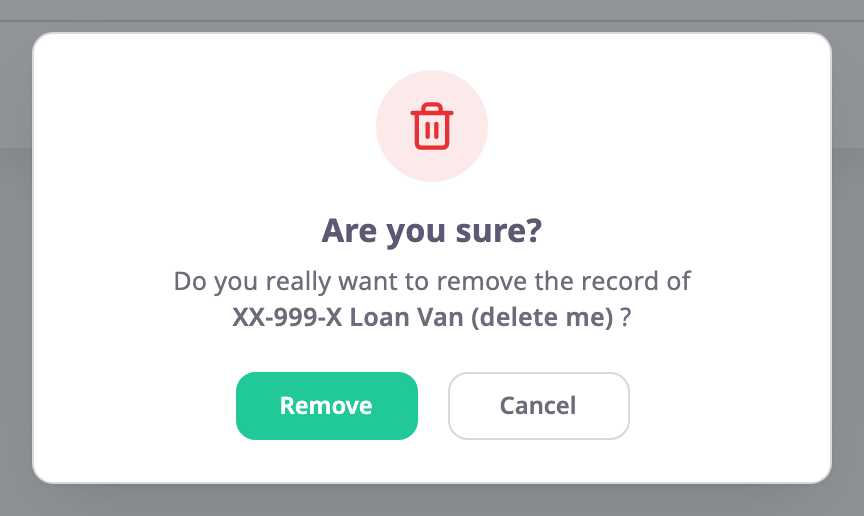
Select Cancel to keep the unit.
¶ Delete several units at once
- In the units list, tick the checkbox of each unit.
A bar above the list shows how many units you selected. - In the bar, select Delete.
The dialog asks "Delete 2 selected items? This cannot be undone.", with the number of units. - Select Delete.
The Result dialog counts the units that succeeded and failed, and names each failed unit with the reason. - Select Ok.
The list reloads.
One run deletes at most 100 units. The app checks each unit as it would for one. A unit it refuses fails, and the app still deletes the others. See Act on many units at once.
¶ Delete from the map
You can also delete a unit from its menu on the map. Delete sits in the Manage group of the unit menu. That group shows only on a unit your account can edit.
-
In the side menu, select Units > Tracking.
The map opens with the unit list in the dock. -
Point at the unit's row.
The quick actions appear at the end of the row. -
Select More.
The unit menu opens.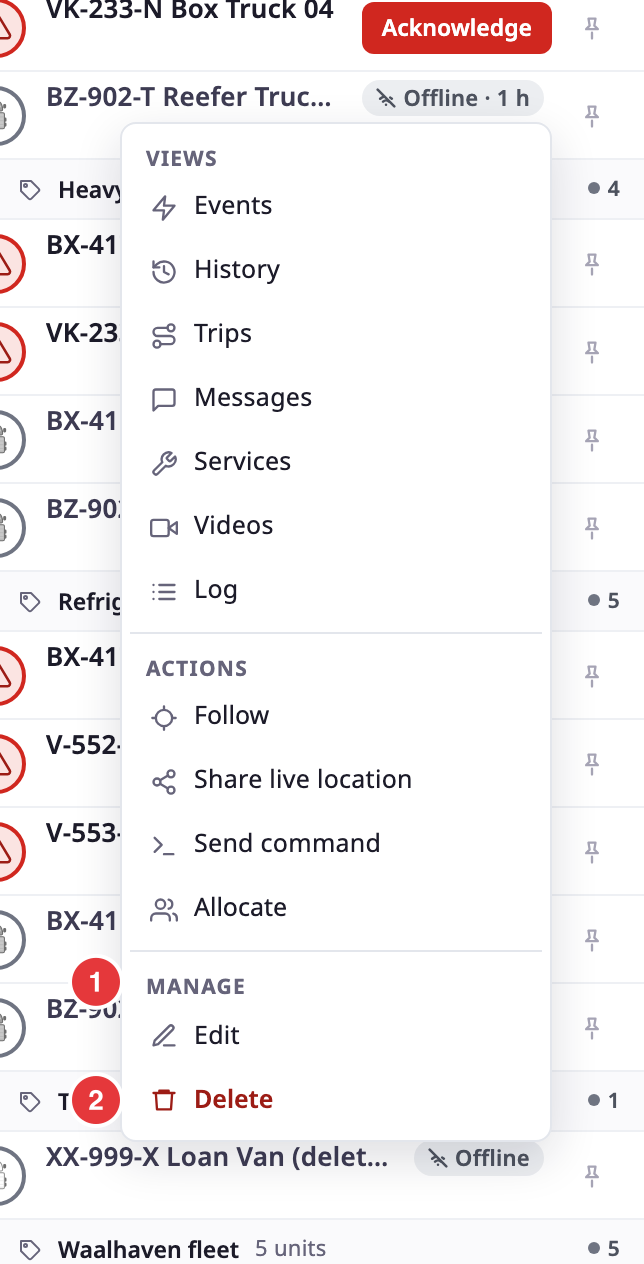
-
Under Manage, select Delete, marked 2.
The same "Are you sure?" dialog opens. -
Select Remove.
The message "Unit deleted successfully" appears, and the unit leaves the list and the map.
The More button on the unit card opens the same menu. See Unit list and Unit card on the map. If the server refuses, a message reads "Could not delete the unit" or gives the server's reason.
¶ What happens next
- The unit disappears from lists, the map and new reports for every account.
- Its devices are free. They stay in your account and you can add them to another unit.
- Its allocations, operator assignment and group memberships end.
- Messages the devices sent before the deletion stay stored.