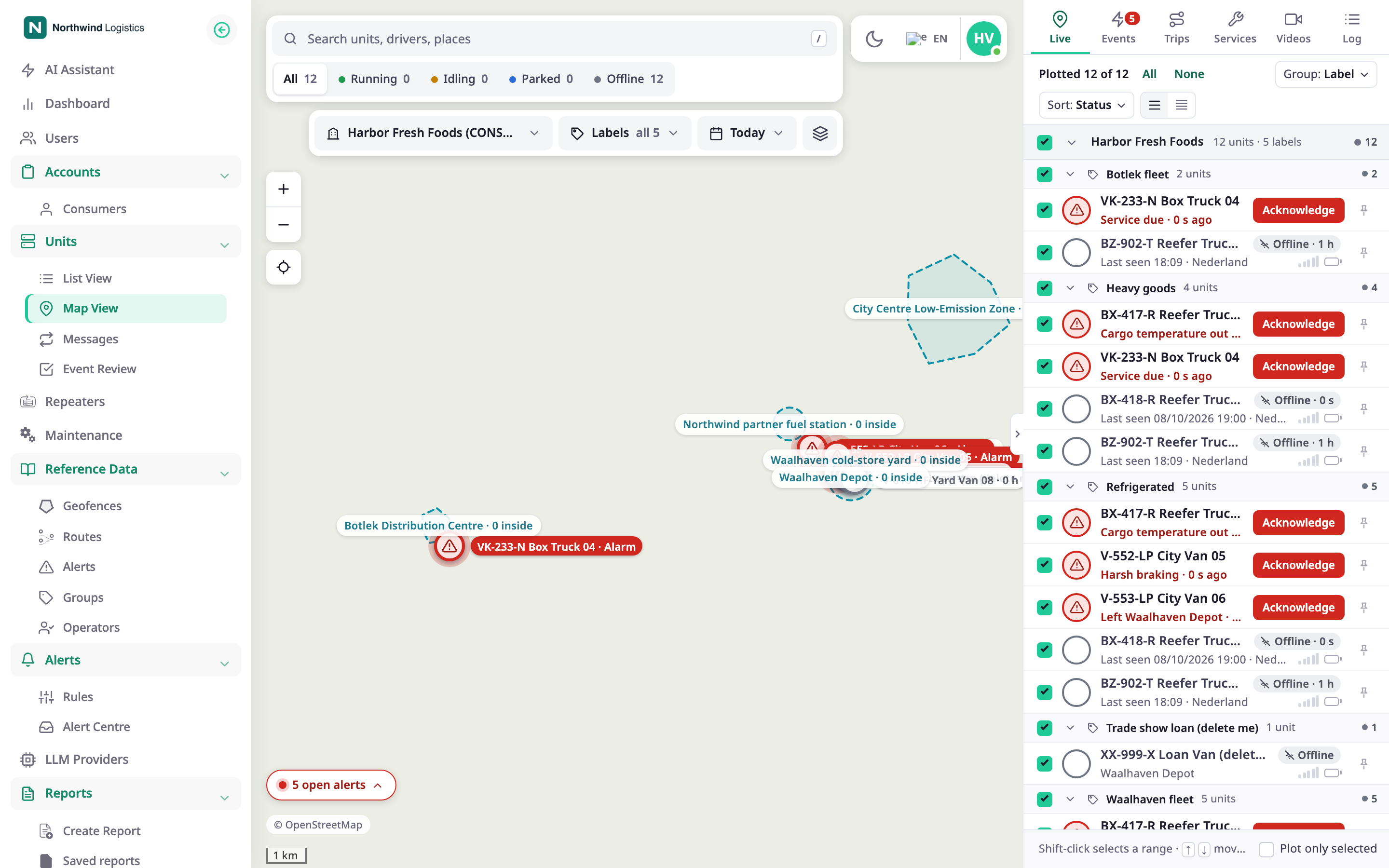
The map is the live view of your fleet. One screen shows your units on a map, a list of them beside it and tabs for events, trips and more. To open it, in the side menu, select Units > Tracking.
¶ What the map shows
- A marker for every unit you plot that has a position. When you open the map, no unit is plotted; you choose which ones to show. Markers move when the units report.
- The geofences of your account, if your role can read them.
- Alerts that need you: a chip at the bottom of the map counts the open ones.
- A base map you choose, light or dark, and optional trails, labels and heading arrows.
¶ The list and the tabs
The dock at the right of the map has a Live tab with the unit list, and tabs for Events, Trips, Services, Videos and Log. Videos shows only when your installation has the video feature. Select a unit to see its card with the address, sensors and driver. The other tabs show a unit's records for a period and draw them on the same map. You see only the tabs your role allows.
¶ Live updates
You do not refresh the page. A unit's marker, its status and its card update as it reports.
¶ Alerts on the map
When an alert rule fires, the map tells you at once. You can open the unit, see where it fired and acknowledge the alert. See Respond to a live alert on the map.
¶ Sharing a unit's location
You can give someone outside your account a link that shows where one unit is for a limited time. They need no account. You start from the unit menu or the unit card, and the dock lists the unit's links. The recipient sees a separate public page.
¶ Commands to a unit's device
If your role may send commands, the unit menu and the unit card open Device commands in the dock. You send a command to the unit's device and follow its status and the device's reply in the command log.
¶ Chat with drivers
When chat is on for your account, you can write to a unit's driver from the map and read the replies. See Chat with a unit's driver.
¶ Where to start
-
To learn the screen, read Tracking screen.
-
To choose which units you see, read Track units on the map.
-
To look back, read Review a unit's trips.
-
If a unit is missing, read A unit is missing from the map.
¶ What you can do
- Read every part of the Tracking screen
- Read the unit list
- Read the unit card
- Track units on the map
- Choose accounts, labels and layers
- Set the time range
- Review a unit's trips
- Play back a track
- Create a geofence or route from a trip
- Respond to a live alert on the map
- Share a unit's live location
- Copy or delete a shared location link
- Send a command to a unit's device
- Chat with a unit's driver
For the tabs, see Events tab, Trips tab, History tab and Services and Log tabs. To look up the sharing view, see Share live location view. To see what the person who receives a link sees, see Shared location page.